
Descriptions are from left to right:
License manager
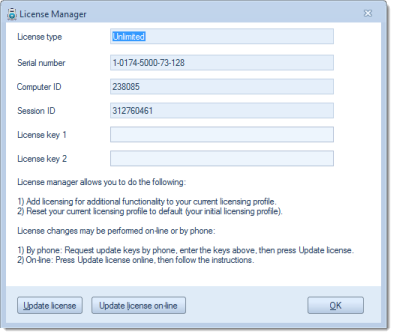
Launches the license manager. This icon is only available if software licensing is active, i.e. whenever a licensing dongle is not in use. The following dialogue will be shown:
The license manager will allow modifications and extensions to the current licensing scheme, either immediately (on-line), by telephone, or via an exchange of e-mails.

Digital signatures (optional)

Help
Opens the local help file.

About CROSSCAP
The following window will open:


This screen provides information about the software, the current CROSSCAP version number, the dongle ID plus a button labelled Credits. After pressing the Credits button, some of the technologies used in CROSSCAP will be listed, together with their key developers. Press Ok to close the About screen.
Support data
The following dialogue will open:
If you wish to report a software bug or have a persistent technical problem, then please answer Yes and send the archive file (*.ZIP) created by this script to support@srz.de, accompanied by a detailed description. Please also supply your daytime phone number and a return e-mail adress.


Teamviewer
Initiates a remote control session with CROSSCAP support, which will be helpful during troubleshooting. Please operate this button only if instructed by our support staff. The following window will open:
As soon as a connection to the internet has been established, the two fields Your ID and Password will be filled with (seemingly random) characters. Our support staff will ask you for these two strings of characters, which they in turn will use to start a remote control session, with your computer.
After the session has been initiated, you and CROSSCAP support will be able to jointly view and operate your PC screen.

