The finalization of batches will proceed differently, depending on how the process manager has been configured (see: Activating the Process Manager).
Process Manager without Scheduling:
(The process manager has been selected in the project template, but scheduling has been turned off)
Resulting behaviour: The batch to be finalized is placed in the process manager queue and will be processed as soon as possible. Since the process manager performs in background mode, it is possible to simultaneously begin and run new batches.
Please note: During finalization, the process manager will consume substantial amounts of additional PC resources (memory & CPU) and might therefore affect other programs running in parallel (such as CROSSCAP scan-jobs). In order to avoid / reduce this problem, you should either make use of scheduling (i.e. process jobs during off-hours) or limit the amount of parallel processes allowed (see chapter Process Manager, Activating the Process Manager).
You may also manually stop and restart the process manager in order to temporarily reclaim PC resources.
Process Manager with Scheduling
(The process manager has been selected in the project template and scheduling has been turned on)
Prerequisites: The process manager has not been started together with the CROSSCAP application, or it has been manually stopped. When performing batch-scans, the process manager indicators (on the far right) should look like this (otherwise, batches will be finalized immediately, regardless of scheduling):
Resulting behaviour: The batch to be finalized is placed in the process manager queue. At the scheduled time, all items in the job-queue will be processed.
Please note: Scheduling is performed from within the application, not using the Windows task planner. Therefore you should not shut down CROSSCAP after concluding your batch scans.
The Process Manager has not been activated
(The finalize via process manager option in project settings has not been checked)
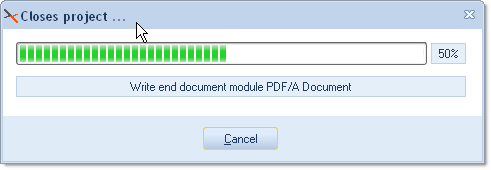
Resulting behaviour: The batch to be finalized is not placed in the process manager queue. Instead, the finalisation will happen within the current CROSSCAP session. During finalization, you will see the following progress bar:
Since the main program is busy with finishing the current project, no new CROSSCAP batches may be started, during this time.