Batch separation is controlled through bar codes and will terminate the current batch (and optionally start a new one), from within a document pile / batch.
Action taken at batch separation
Determines which action is performed after a batch separator has been detected:
The current batch is saved, pushed into the background and not (yet) completed. SCAMAX® scan+ stops reading in further images at this point.
The current batch is saved, pushed into the background and not (yet) completed. SCAMAX® scan+ automatically creates a new batch and continues reading in images.
Either performs all processes required for export directly, or instead hands them off to the Process manager, for later processing (depending on which behavior was configured in the project template). SCAMAX® scan+ stops reading in further images at this point.
Either performs all processes required for export directly, or instead hands them off to the Process manager, for later processing (depending on which behavior was configured in the project template). SCAMAX® scan+ automatically creates a new batch and continues reading in images.
Only performs all processes required for export, including batch separation, once the batch is manually completed, or hands off processing to the Process manager, for later processing (depending on which behavior was configured in the project template).
Switched on
Turns this function On or Off.
Unlike deleting it, deactivating this function (Off) retains all settings made here, should you wish to use this function again at a later time.
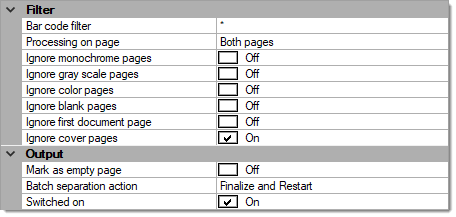
Filter:
The following filters determine which pages this function is applied to.
Bar code filter
All incoming bar codes are examined. The first bar code to match the filter criteria specified here will trigger batch separation. Bar codes not matching these filter conditions are ignored and skipped.
The default entry is an asterisk:
*
and will accept any bar code value.
If the Bar code filter begins with a caret (roof) character, however:
^
then the entire filter string will be interpreted as a regular expression, which allows for flexible filtering.
For more and detailed information please refer to the section on Regular expressions, in the Appendix.
Processing on page
Limits batch separation to certain pages. Possible (and self explanatory) choices are:
Ignore monochrome pages, Ignore gray scale pages, Ignore color pages
Specifically applies to multistream mode. If any of these three filters are set to On, project separation is turned off for respective page types. Please note that combining all three options Ignore monochrome pages, Ignore gray scaled pages and Ignore color pages will effectively turn off project separation all together, since there are no images left to process.
Ignore blank pages
If set to On, blank pages are not processed (this saves unnecessary CPU load).
Ignore first document page
Causes this function to skip the first page of every document (which usually is the page triggering document separation).
Ignore cover pages
Turns this function off, for cover pages.
Output:
Mark as empty page
If SCAMAX® scan+ finds a valid batch separator, the page containing the triggering bar code is marked for deletion and will not be included in the output file.
Batch separation action
Specifies what happens after the detection of a batch separator:
Suspend
The current batch is saved but not finalized, no output files are created. SCAMAX® scan+ will return to Quick mode.
This option is useful if just a single batch separator is placed at the end of each scanned document pile, in which case the batch will be saved for further (manual) modification, without any further operator intervention.
To reopen a suspended batch for editing, click on the Suspended batches button in the Start batch window. Please note: For the Suspended batches button to become active, you will need to select the appropriate project template, beforehand.
Suspend and start new batch
The current batch is saved but not finalized, no output files are created. A new batch is started (see the section on Automatic batch start in Starting and closing batches, in the Appendix).
This option is intended for automatically splitting document piles into several (partial) batches.
To reopen one of the suspended batches for editing, click on the Suspended batches button in the Start batch window. Please note: For the Suspended batches button to become active, you will need to select the appropriate project template, beforehand.
Finalize
Either performs all export processing immediately or passes the current project on to the process manager (depending on what was specified in the project template). After that, SCAMAX® scan+ will return to Quick mode.
This option is useful if just a single batch separator is placed at the end of each scanned document pile, in which case the batch will be finalized, without any further operator intervention.
Finalize and restart
Either performs all export processing immediately or hands the current batch over to the process manager (depending on what was specified in the project template). Next, a new batch is opened (see the section on Automatic batch start in Starting and closing batches, in the Appendix).
This option is intended for automatically splitting document piles into several batches.
Switched on
Switches this module on or off. Turning this function off will preserve all settings, for later use (as opposed to removing the function). Useful when developing or troubleshooting project templates.