Validation performs an extended check of index- or bar code values, e.g. by matching them to external data (from files or databases) or by applying a specialized algorithm (for calculating and verifying checksums).

On the left side (Available), select the desired function and copy it to the right window (Selected) by using the button labelled with an green arrow to the right. Repeat as often as necessary. If you wish to remove an entry from the right window (Selected), highlight the entry and operate the button labelled with an green arrow to the left.
After highlighting one of the selected functions in the right window, the bottom window (Properties of ...) will show you the detail options for this function.
Validation checksum
Specialized algorithms (hard-coded into CROSSCAP) are used to calculate and verify index value checksums.
Three different algorithms are currently available:

Validation in text file (CSV/TAB)
Validation is performed using values from a table contained in an external text-file. The current index value is matched with all values from a specific table column. Values within table rows need to be delimited with either a comma or semi-colon (CSV-format) or with a tab-character (TAB-format).
File:
File path
Full directory path and file name of the text file.
Filter:
Search column
If the Header option (see below) is turned On, enter the exact name of the search column, as specified in the header row. If the Header option is turned Off, you will need to enter the number of the search column, instead (columns are numbered from left to right).
Format:
Type
Specifiy the type of the of text file (i.e. the delimiter used): Comma-separated (CSV) or TAB-separated (TAB).
Header
If the table has a header-row containing names for all table columns, turn this option On. If there is no such header-row (and the first row contains data), turn this option Off. This option determines whether a column name (On) or a column number (Off) needs to be entered as Search column, above.

Validation in the database:
Compares the current index value with all entries contained in a database column. If the value is found, it will be accepted, if not, it will be rejected.
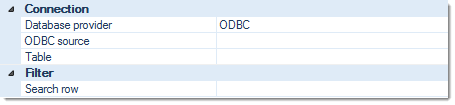
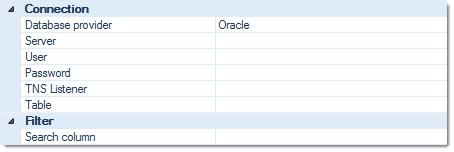
The Properties of ... section will vary depending on the database type (Oracle or ODBC) selected:
Connection:
Database provider
Select the type of database connection desired. Options are:
ODBC-Source (ODBC or ODBC query)
Select an ODBC connection for the target database, from the drop-down list.
You will need to set up a suitable ODBC user- or system-DSN beforehand, using the 32-Bit ODBC-Manager.
A system DSN is preferrable, but will require administrative rights to the scan- and index PCs.
Server, User, Password, TNS Listener (Oracle or Oracle query)
Enter all required Oracle user credentials.
Table
Select the name of the database table. If the database connection has been established properly, you will be presented with a drop-down list of available tables.
Filter:
Search column (ODBC or Oracle)
Enter the name of the table's target column.
SQL query (ODBC query or Oracle query)
Enter your SQL query.
Validation in XML file
Validation is performed using values contained in an external XML-file.
File:
File path
Full directory path and file name of the XML-file.
Filter:
Name of the XML element
Enter the exact name of the XML element containing the values to be checked against.

Validation maximum date (Date/Time only)
Validation is performed on the basis of some maximum date and time. The index-value is accepted if it's value is before that limit and rejected if its beyond the specified value:
Index
Validation type
Choose between Fixed and Relative. Fixed will ask for an absolute date and time. Relative will accept an offset value instead, which will implement a tracking / rolling limit.
Maximum date
Enter the maximum date and time allowed. Use the calendar applet at the end of the input line.
Offset
Enter the maximum date as an offset to the current date and time.
Enter as 0 (zero) or as plus or minus any amount of days.

Validation minimum date (Date/Time only)
Validation is performed on the basis of some minimum date and time. The index-value is accepted if it's value is beyond that limit and rejected if its before the specified value:
Index
Validation type
Choose between Fixed and Relative. Fixed will ask for an absolute date and time. Relative will accept an offset value instead, which will implement a tracking / rolling limit.
Minimum date
Enter the minimum date and time allowed. Use the calendar applet at the end of the input line.
Offset
Enter the minimum date as as an offset to the current date and time.
Enter as 0 (zero) or as plus or minus any amount of days.

Validation string length
Validation is performed on the basis of a minimum and maximum length of the index-value tested. The index-value is accepted if its length is within the limits specified below:
Index:
Minimum length
Enter the minimum length required (0-255).
Maximum length
Enter the maximum length required (0-255).

Validation with powershell script
Validation is performed by running a powershell script:
Output:
Script text
Either supply the path and filename to an externally stored powershell script or enter the complete powershell code, right here. The
button will provide a larger edit box, if neccessary.

Validation with a regular expression
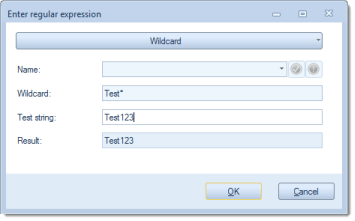
Validation is performed by applying a regular expression or a simple rule containing wildcard characters.
The default rule is just a single wildcard, an asterisk (*), which will pass/accept any value:
Filter:
Filter text
You may enter filter rules directly, by entering or pasting them into the input field supplied.
The
You may save expressions, if you intend to re-use them elsewhere within CROSSCAP (optional). Simply provide a suitable Name and press the button with a green checkmark, right next to it.
Press the button labelled Wildcard to switch to regular expressions. Press this button again (now labelled Regular expression), if you wish to return to using wildcards.
You may find more information on regular expressions in sections Use of variables and Regular Expressions, in the Appendix.


Validation with SAP RFC function
Compares the current index value with the contents of a SAP database. This type of validation relies on a so-called RFC function, which has to be set up in the SAP system, beforehand. If the index value is confirmed, it will be accepted, if not, it will be rejected:
Function:
Parameters, Function name, Result field name
Enter all details for the RFC function you wish to use.
Server:
Server name, User name, Password, Client name, System ID, System Nr
Enter the SAP server to be used, plus all necessary information and credentials required to log in to that server.
