Enables an external program to be launched from within CROSSCAP Enterprise job processing.
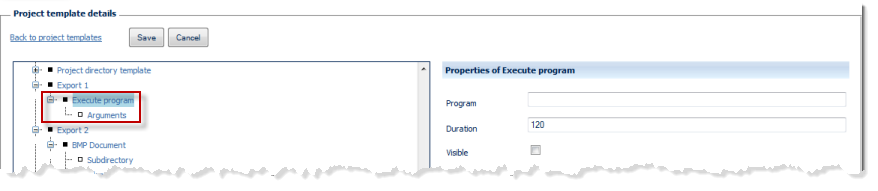
Program
Specify the desired executable. The directory path and filename needs to be entered manually and may be specified using Windows drive letters (e.g. C:\bin\program.exe) or UNC format (e.g. \\PC01\bin\program.exe). Please note: The executable needs to reside on the machine launching this program!
Duration
CROSSCAP Enterprise will monitor program execution: If the program does not terminate within the duration specified (in seconds), then CROSSCAP Enterprise will abort batch processing and show an error message. Entering a value of -1 will cause CROSSCAP Enterprise to wait for an infinite time, until the external program finally terminates.
Visible
If possible, CROSSCAP will suppress all console or screen messages produced by the external program. Setting this option to on (checkbox ticked) will allow messages to be shown, turning it off (remove checkmark) will attempt to suppress all program messages.
Properties of Arguments
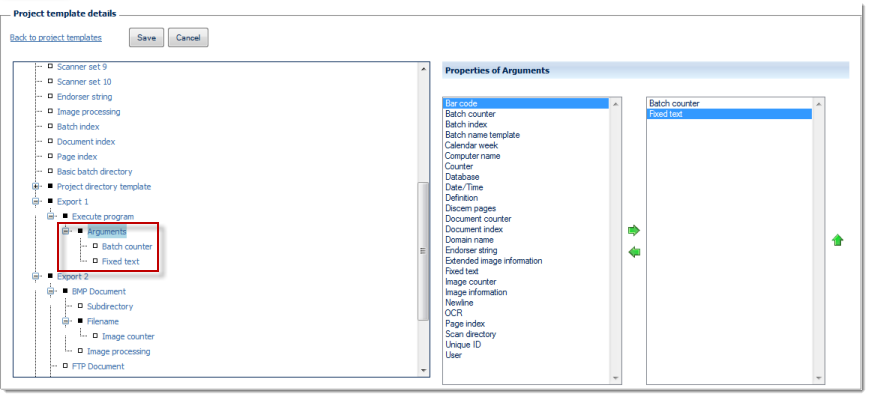
The left side of the Properties of ... window lists all configuration options available for this item, the right side shows the options chosen so far. By highlighting one of the options and operating the green left or right arrow buttons, the option can be moved back and forth between the left column (available options) and the right column (selected options). If an option is highlighted in the right column (selected options), it may be moved up or down the list by operating the green up or down arrows. This changes the sequence in which the options are executed (processing will proceed from the top of the list).
Any items in the right column (selected options) will also appear in the configuration tree (far left), where they can be highlighted for further configuration.
You may use any of the available variables (such as date/time, calendar week, batch counter and/or fixed text) for generating the Project directory template. For more and detailed information on variables please refer to the separate section on Variables, in the Appendix.