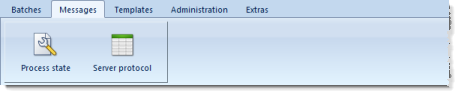
Descriptions are from left to right:
Process state
Pressing this button will result in the display of the Process state window:
Process state will list all CROSSCAP Enterprise processes known to the system. Each line of the table corresponds to one process. Clicking one of the column-headers will re-sort the entire list, according to the contents of that column.
Column State will indicate whether a process is active, idle or if it has stopped. If a process is currently active, then column Progress will display an advancing progress bar.
In the sample screen-shot above, three types of process may be seen: Several Export-processes (Export:E1: ...), two processes handling preprocessing (PreProcess:B1: ...) and an indexing process (Index: ...). Generally, all processes shown in the Process state list will correspond to one of the CROSSCAP Enterprise workflow steps (see chapter Getting started, section Workflow CROSSCAP Enterprise).

Server protocol
Pressing this button will result in the following display:
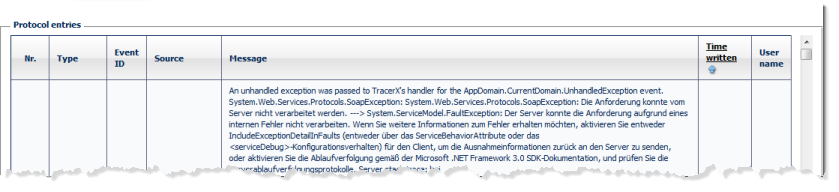
Table Server protocol will list all system messages originating from CROSSCAP Enterprise server and batch processing. Each line of the table corresponds to one system message.
The Server protocol list is chronologically sorted. Clicking the column-header Time written will toggle sorting, from ascending to descending and vice versa.
Column Type will indicate one of three error categories: Error (there was a problem, processing has been halted), Warning (there was a problem, but processing has continued) or Information (non-critical, informative).
Please note: If an error error condition is reported in the Batch log, then the Server protocol list (this list!) will usually contain more exhaustive (and thus more helpful) information, regarding the issue on hand.
As an alternative to actively checking server protocols and batch logs, you may also configure an e-mail push service, which will automatically send you notifications whenever batch processing has run into problems or whenever batches have become overdue. Once configured, the push service will issue a daily summary report listing all current issues, in the early morning hours. For more details, please refer to the section on the Administration toolbar, in this chapter.