Indicators on the Status Bar
The two lamps on the far right side of the status bar (at the bottom of the program window) give an indication towards the current state of the process manager.
The left lamp refers to overall operating status (black: not started or stopped, green: active and waiting, amber: active and processing), whereas the right lamp indicates the process manager's error status (green: no problems so far, red: there has been a problem).
Possible indicator combinations have the following meaning:
Please note: During finalization, the process manager will consume substantial amounts of additional PC resources (memory & CPU) and might therefore affect other programs running in parallel (such as CROSSCAP scan-jobs). In order to avoid / reduce this problem, you should either make use of scheduling (i.e. process jobs during off-hours) or limit the amount of parallel processes allowed (see chapter Process Manager, Activating the Process Manager).




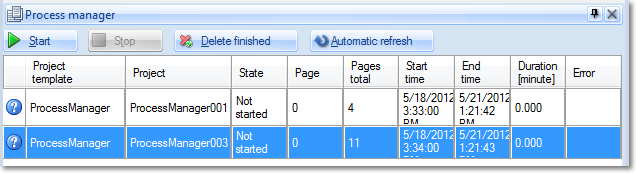
For a full view of all the projects transferred to the process manager, click on button Process manager, from the Control toolbar. The process manager monitor screen will open (and may be grabbed by its title bar and dragged to other screen areas, for better visibility):
Each line represents a batch which has been transferred to the process manager queue. The value in the column labelled State reflects the current operating status.
All batches which have not been processed yet (Status: Not started) can be made to finish independently of scheduling by pressing the Start button, at the top left. As soon as the process manager has been manually started, it will begin processing all unfinished batches. The Stop button will terminate the process manager and interrupt processing.
Error Handling
Should fatal problems have occured during batch finalization, then the process manager will indicate this by setting batch status to Error. Right clicking the affected project will allow you to decide on further actions for this batch:
Prepare
The batch is returned to the process manager queue and will be finalized again. Batch status is reset to Not started.
Suspend
The batch is removed from the process manager queue and may be opened for editing, making it possible to add or correct items.
To reopen a suspended batch for editing, click on the Suspended batches button in the Start batch window. Please note: For the Suspended batches button to become active, you will need to select the appropriate project template, beforehand.
Delete
The batch is cancelled and removed from the process manager queue, nothing is saved, no output is generated.
Delete finished
All finshed batches will be removed from the process manager queue and all saved data will be cleared.
Automatic refresh
The process manager monitor view will be periodically refreshed.
