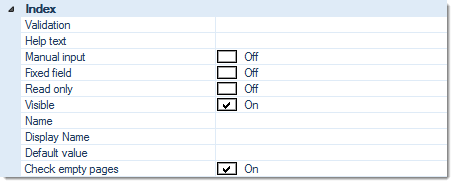
Index:
Validation
Validation performs a check of index values, e.g. by comparing them to external data (from files or databases) or by examining them with a regular expression. Index values failing validation will be rejected and flagged as requiring input.
The
button at the end of the input line will open an extended dialogue with a list of all validation options available. For more detailed information, please refer to the separate section on Validation (Index), in this chapter.
Form factor width
Sets the width for this index field. Enter any value between 0.1 (10% of the available width) and 1.0 (100% of the available width). Please note: Values below 0.1 and above 1.0 will result in a program error.
Provided the widths of subsequent Index fields add up to less than or exactly 1.0 (100%), then these fields will be placed on the same line within the index window (e.g., if two subsequent index fields have a form factor width of 0.5 each, they will be placed on the same line).
Hide label
Usually, the index field's Display name (see below) is used for labelling an index field. If set to ON, this setting will suppress such labelling, so only the field's entry / display box will be shown.
Help text
Enter a short explanatory text which will help operators to understand the nature and the handling of this particular index value.
The Help text will appear during indexing, whenever a user hovers the mouse pointer over this index field, for a short while.
Manual input
If set to On, this option will force manual input of an index value. When receiving images from a scanner, CROSSCAP will stop and prompt the user for input, whenever this index field needs updating.
Fixed Field
If set to On, this option will carry over the index value entered here, to all documents or pages further down the batch. This can be of help whenever large amounts of identical index values need to be entered.
Carry over will be stopped if an index value is encountered which has already been modified by the user. Otherwise, all index values will be replaced, right up to the end of the current batch.
Read only
Whenever index fields are automatically filled with values from reliable sources (such as bar codes or databases), they can be protected against further changes by setting them to Read only. They will then be shown in grey and cannot be modified by users.
Visible
Whenever index fields contain items which users are not supposed or not required to see (such as interim results or sensitive data), they can be hidden from sight by setting this flag to Off. Though these fields will disappear from the index view, they will still perform as a valid source of index data, e.g. when exporting index files.
Name, Display Name
The Display name will appear during data entry and should be chosen with the CROSSCAP user/operator in mind.
Name is not displayed anywhere else in CROSSCAP, but it can be used as an alternative caption, for reference purposes. It could, e.g., contain the name of a (target-) database column this index field corresponds to. When later pulling data from index fields, e.g. during export, there is a choice of retrieving either the Name, Display Name or Content of an index field.
Default value
Use the Default value to automatically assign index values, e.g. through bar code or text recognition.
The
Check empty pages
If set to On, this will apply the index settings above to all incoming pages, including blank pages. If this is undesired or causes problems, you should set this option to Off, which will exclude blank pages.